
Remote desktop · built for real work
Unattended remote desktop for your laptop and office PCs.
Reach your computers from anywhere, even when nobody is there to click Accept. Encrypted end to end, quick on ordinary connections, and honest about your usage. For Windows, Mac and Android.
Drop to copy over
Waiting for a connection
Studio iMac · 482 666 794
0
platforms to download today
Windows, macOS and Android. Linux and iOS are next.
0
permissions per device
Keyboard, clipboard, files, audio, camera, terminal and more: you allow what you want.
0
ways to let someone in
A one-time password, a permanent password, or either.
0 bytes
of your screen stored
Our relay forwards encrypted data and keeps none of it.
01How it works
Three steps. About ten seconds, the first time.
After that it is one: type the ID, or click a computer in your list.
Install it
Download SystemDesk for the computer or phone you want to reach. It opens straight to a screen with the two things anyone needs to connect: an ID and a password. No server to set up, no port to open on your router.
SystemDesk setup
A few megabytes · no account needed to be reached
Share your ID
Read the nine-digit ID and the temporary password to the person on the other side, or save a permanent password for a machine you want to reach any time, like the PC at the office.
4 459 591
qg3rj8
Connect
Type the ID, press Connect. SystemDesk finds the shortest route, usually a direct one, wraps the session in encryption and shows you the other screen. Move the mouse, type, drag a file across, then end the session when you are done.
02Speed
Fast where it matters: your cursor, your screen, your files.
SystemDesk always tries the direct route first. Only when a firewall or a strict router gets in the way does your session go through a relay, and it stays encrypted either way. You do not configure any of it.
- Direct first, relay as the safety net. NAT hole-punching over UDP, with an encrypted relay fallback so a session starts even from behind a hotel or office network.
- Hardware video codecs. H.264, H.265 and VP9 are used on the GPU where your machine supports it, which keeps both computers cool and the picture smooth.
- More than one screen. Switch between the remote monitors, or look at all of them side by side.
- Copy and paste both ways, text and files, as if the two computers shared a clipboard.
03Control
You decide what the other side is allowed to do.
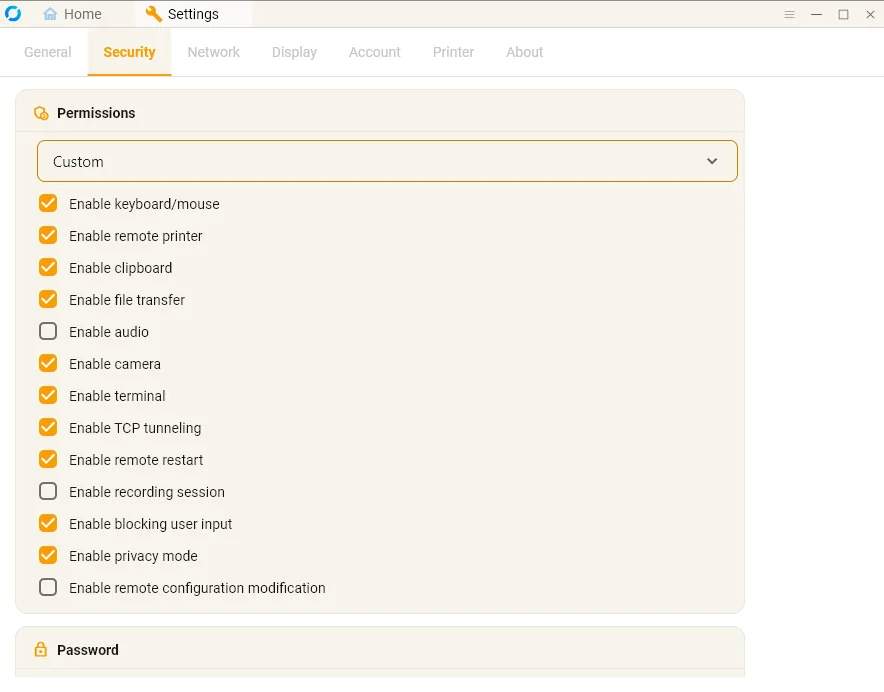
Every computer keeps its own list of permissions. Lock down a kiosk, open everything on your own desk, or give a helper just enough to fix the problem and nothing more.
- 13 switches per device: keyboard and mouse, clipboard, file transfer, audio, camera, terminal, printer, TCP tunnelling, remote restart and more.
- Privacy mode and input blocking. Black out the screen of the computer you are working on, or stop anyone at the keyboard from interfering.
- Three ways in. A one-time password for a quick help session, a permanent one for your own machines, or both.
- Recording stays off until you turn it on, on the machine that is being recorded.
04Everywhere
Every device you own, in one list.
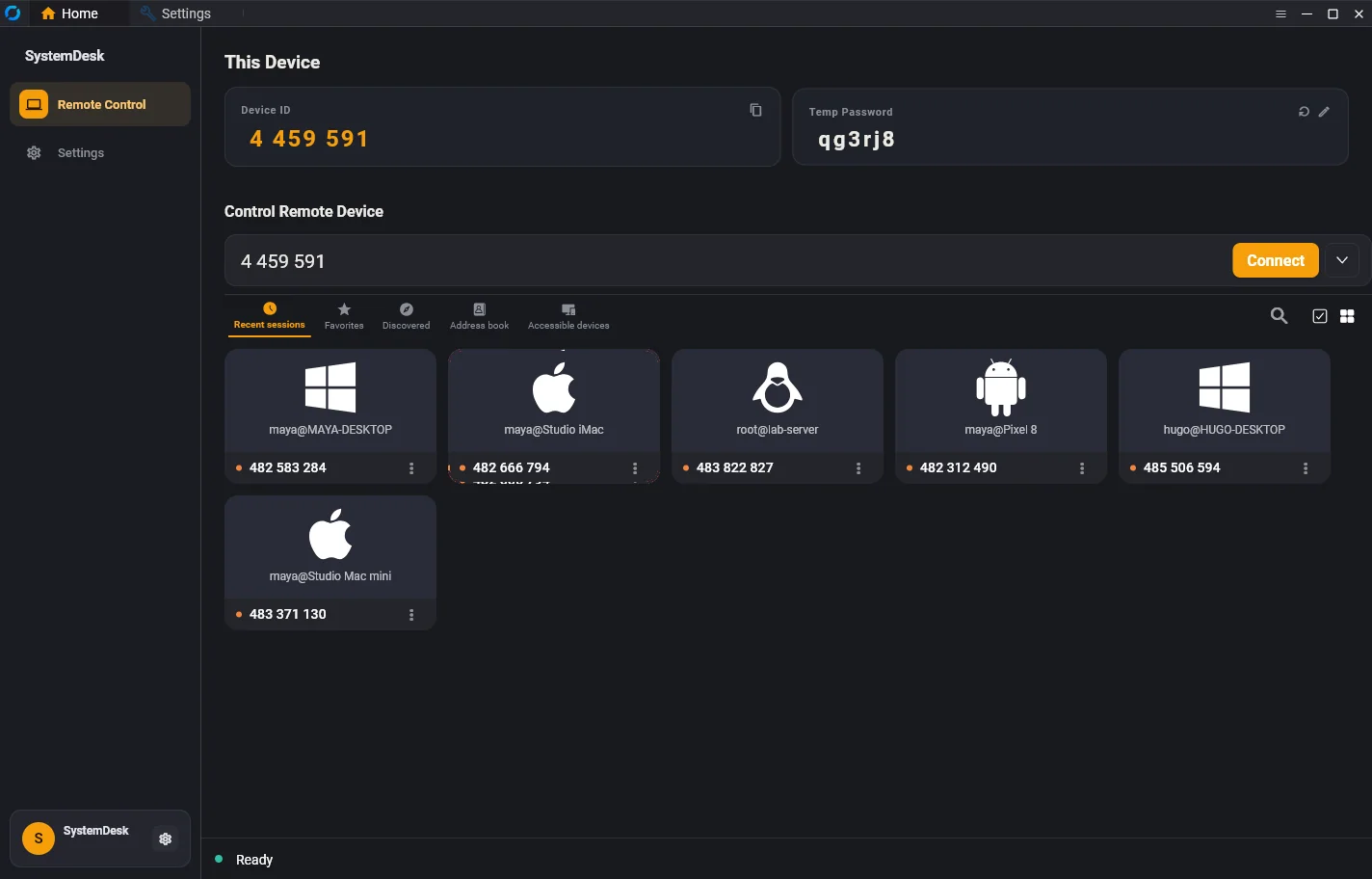
Your own computers, the office PC, a server in a closet and your phone sit together on the home screen. Open any of them with a click, or type an ID for someone you are helping.
- Recent sessions for the machines you use every day, with their platform and ID at a glance.
- Favourites and an address book with tags, so a fleet of twenty computers stays findable.
- Discovered devices shows SystemDesk computers on your local network without typing anything.
- Windows, macOS and Android today, each as host and as viewer. Linux and iOS are next.
05Your account
Your plan, your usage and your devices, right inside the app.
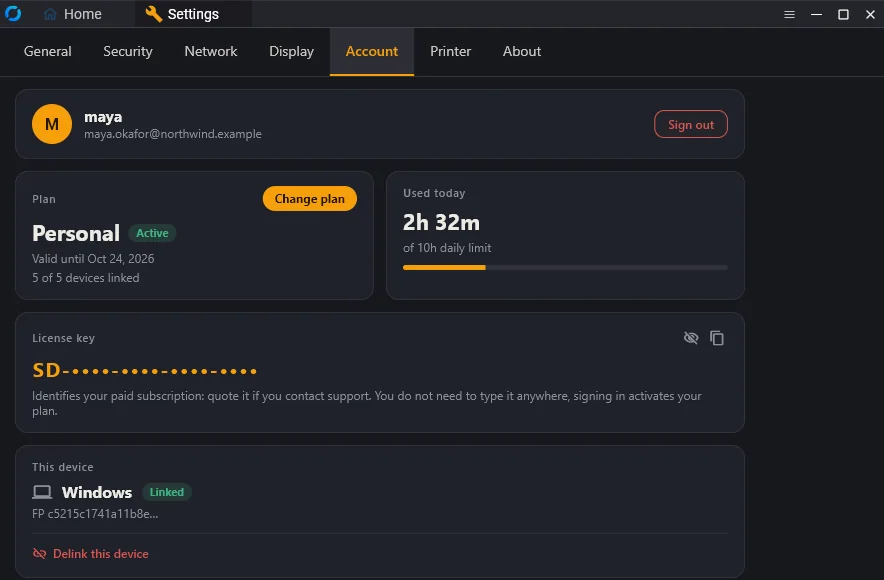
No hunting through a website to find out where you stand. Open Settings, then Account: the plan you are on, how much of today's allowance is used, which devices are linked and your license key.
- Today at a glance: usage out of your daily limit, with a bar that fills as you work.
- License key, hidden by default like a password. One tap on the eye reveals it, another copies it.
- Linked devices, with a one-click way to unlink the one you are sitting at when you replace it.
- Signed in on one machine only, so removing a device from your account signs it out there and nowhere else.
06Customer portal
A portal of your own, with everything in your hands.
Every user has a separate portal at my.systemdesk.net, with the same login as the app: devices, billing, upgrades, live sessions and full insights and stats.
Today at a glance
Open the portalToday at a glance
Usage against your daily limit, devices online right now, live sessions, recent connections and any message from us, on one page.
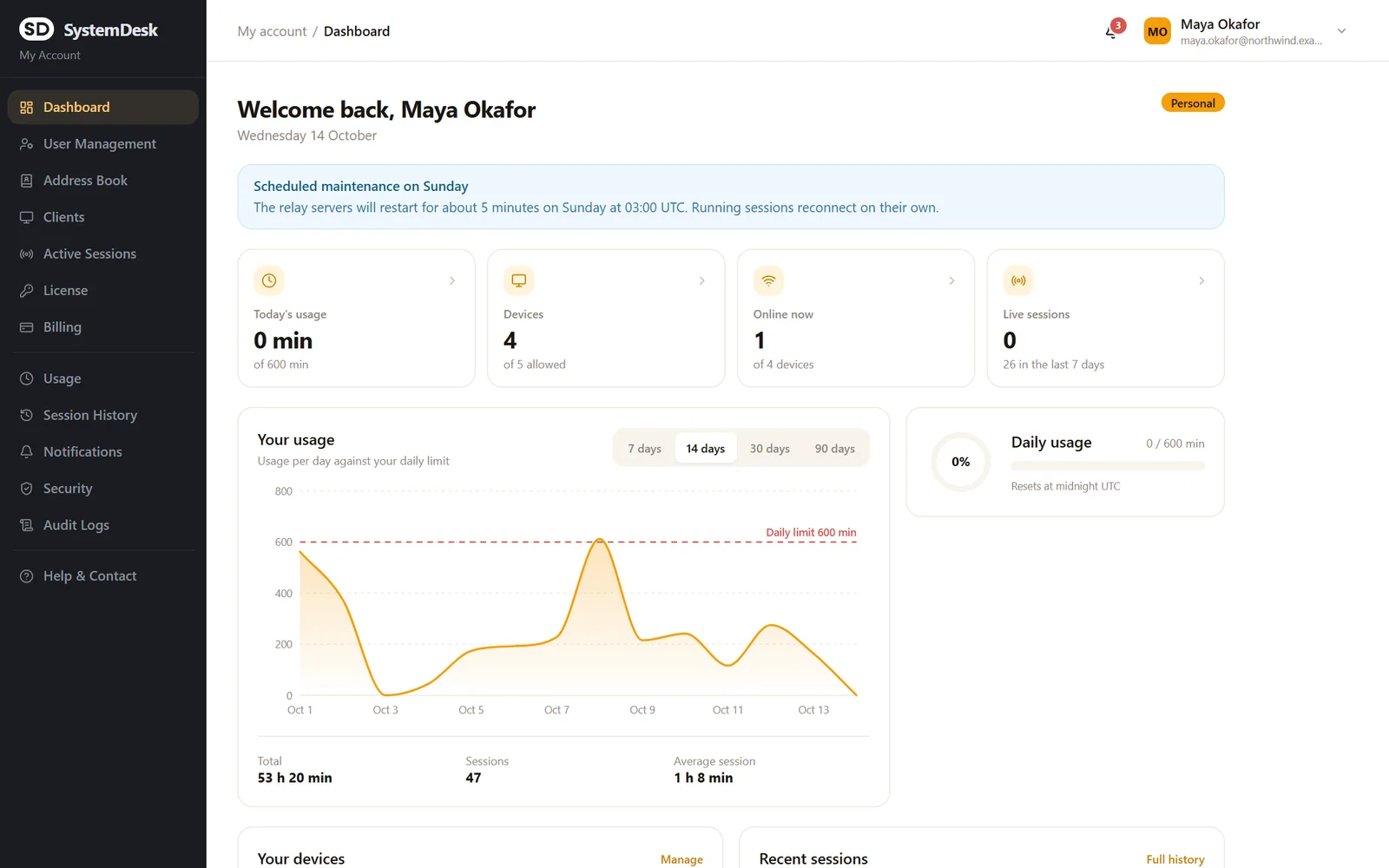
Every user gets a separate portal to manage devices, billing, upgrades and live sessions, with full insights and stats and full control of everything.
Sign in to your portalManage your devices
See which of your computers and phones are online and when each was last seen, and free a slot with one click when you replace a computer.
Live sessions
See who is connected to your computers right now, as it happens.
Insights and stats
Usage per day, per device and per hour, session history, and how close you are to every limit of your plan. Export history and your audit log to a spreadsheet.
Billing and upgrades
Your plan, license key, payments and an invoice for every payment. Upgrade or add months yourself, and see the cheapest plan that lifts a limit when one is in your way. Nothing renews by itself.
Add-ons and your team
Add extra connections or devices to a paid plan, and share your plan with people you trust. You decide who stays.
Security in your hands
Two-factor sign-in, your sign-ins on every browser and app, and a log of what happened on your account.
NEWWhat we have added
Always improving, and all of it live today.
Voice calls, shared plans, add-ons, the Microsoft Store, invoices, fairer time counting and more. Everything on this page is live today.
The program you install on your computers and your phone.
07No surprises
We tell you before a limit becomes a problem.
Reach your daily usage limit, fill your device slots or hit the number of sessions your plan allows at once, and SystemDesk sends you one email with your own numbers and the plan that would lift that limit.
- One email per limit, per day. Never a stream of them.
- Your real numbers: today, the last seven days, your busiest day and how many devices are linked.
- The cheapest plan that fixes it, not the most expensive one. If you are already on our biggest, it says so and offers to talk.
- Your choice. Switch the emails off in Notifications; the notice still appears in your portal.
You have reached today's usage limit (500 of 500 min)
SystemDesk · to you · just now
Hi Maya,
Your Personal plan includes a daily usage limit of 500 min of remote sessions, and today's is used up. New sessions are blocked until tomorrow.
Suggested plan: Professional Squad
- 720 min a day (now 500 min)
- 5 devices (now 2)
- 4 sessions at once (now 2)
You get this because limit alerts are on for your account. Switch them off under Notifications.
08Security and privacy
Built on the assumption that someone is trying to get in.
Remote access is a powerful thing to hand to software. Here is how SystemDesk keeps it yours.
Encrypted end to end
Sessions are encrypted between your two devices with NaCl (libsodium). Our relay only ever forwards data it cannot read.
Devices tied to your account
Each device is bound to your account by a hardware fingerprint. Remove one in the portal and only that device is signed out.
Two-factor sign in
Protect your account with an authenticator app. Repeated wrong passwords lock the account for a while, automatically.
Sessions you can end
See every live session, who is connected to which machine, and end one with a click when something looks wrong.
A record you can read
An audit log of sign-ins, device changes and plan changes, and a list of every browser and app signed in to your account.
Private by design
We keep your account and when sessions happened. We never keep what was on your screen, what you typed or what you copied.
What a session may do, decided per device
13 permissions
What we can see
- Your account: email, username, plan
- Your devices: name, platform, ID and, so you can tell them apart, hostname and operating system
- That a session happened: which devices, when it started, how long it lasted, how it ended
- Support messages you send us
What we cannot see
- What is on the screen during a session
- What you type, including passwords you enter inside the session
- What you copy or the files you move between computers
- Your connection password: it is checked on the computer being reached and is never sent to us
10Platforms
Whatever you are sitting at, whatever you need to reach.
One account, one app on each device, and any of them can be the one you control from or the one you reach.
Linux
Packages for Debian, Ubuntu and Fedora are being prepared
Runs from source today
Packages sooniOS
Viewer for iPhone and iPad
Coming soon
Soon11Pricing
Start free. Pay when it earns it.
No contracts and no per-seat maths. Move up when a limit gets in your way, move down when it does not.
Free
For trying SystemDesk and the occasional rescue session.
forever
- Linked devices
- 1
- Sessions at the same time
- 1
- Length of one session
- 30 min
- Daily usage limit
- 120 min
- Every platform we ship
- End-to-end encryption
- File transfer and clipboard
- Customer portal and session history
Personal
For your own computers, your family's, and the office PC you reach from home.
Normal
$19.99
You pay
$11.99
per month
Your first month: $19.99 $11.99 a month
You save $8 a month. First purchase only; after that it is $19.99 a month. Until December 31, 2026.
- Linked devices
- 2
- Sessions at the same time
- 2
- Length of one session
- 60 min
- Daily usage limit
- 500 min
- Everything in Free
- Unattended access
- License key and invoices
- Limit alerts with upgrade advice
Professional Squad
For teams and support desks that share machines, with the security to match.
Normal
$50
You pay
$35
per month
Your first month: $50 $35 a month
You save $15 a month. First purchase only; after that it is $50 a month. Until December 31, 2026.
- Linked devices
- 5
- Sessions at the same time
- 4
- Length of one session
- 120 min
- Daily usage limit
- 720 min
- Everything in Personal
- Usage reports and CSV export
- Priority help from a person
- Team security: two-factor sign in, audit log, per-device permissions
Business Enterprise
For companies with many people and sites, and a security team to satisfy.
Normal
$500
You pay
$400
per month
Your first month: $500 $400 a month
You save $100 a month. First purchase only; after that it is $500 a month. Until December 31, 2026.
- Linked devices
- 50
- Sessions at the same time
- 10
- Length of one session
- No cap
- Daily usage limit
- No cap
- Everything in Professional Squad
- Invoice billing
- Answers to security questionnaires
- Named contact and rollout help
- Dedicated relay on request
+Add-ons
Outgrown a limit? Add exactly what you need, for as long as you need it.
More sessions at the same time, or more linked devices, on top of any paid plan. No plan change, no contract.
Concurrent connections
Remote sessions that can run at the same time on your account.
1 month
$9
3 months
$27
6 months
$54
12 months
$108
The price of one connection. Buy as many as you need, up to 10 per account.
Add to my planExtra devices
Computers that can be linked to your account.
1 month
$9
3 months
$27
6 months
$54
12 months
$108
The price of one device. Buy as many as you need, up to 10 per account.
Add to my planOn top of a paid plan
Choose your plan first, then add what is missing. Add-ons are for paid plans.
For 1, 3, 6 or 12 months
An add-on ends on its date and nothing renews by itself. We remind you before it ends.
Shared with your team
If you share your plan, the owner buys the add-ons and the extra devices are shared with the people you invited.
Switching
Coming from another remote desktop tool?
Each comparison has the date its facts were checked, links to the other company's own pages, and a section on when the other tool is the better choice.
12Questions
Things people ask before they install it.
Not here? Sign in to the portal and open Help & Contact. A person answers.
Ask usInstall SystemDesk on both. The computer you want to reach shows a nine-digit ID and a password on its home screen. On the other computer type that ID, press Connect and enter the password. If you saved a permanent password for a machine, one click on its card in your list is enough.
The free plan has no time limit and no card. It allows 1 linked device, 1 session at a time and sessions of up to 30 min, with a daily usage limit of 120 min. If you want longer sessions, more devices or more at once, a paid plan lifts those limits. Everything you can see on the Pricing page is exactly what is enforced.
Only the two computers in the session. The session is encrypted end to end with libsodium, so the relay that sometimes carries it sees data it cannot read, and nothing about what is on your screen is stored on our servers.
Then the session goes through a SystemDesk relay, still encrypted. This happens behind strict firewalls, some mobile networks and many hotel Wi-Fi networks. You do not have to do anything; it just takes a slightly longer route.
Windows, macOS and Android work today, each as the computer you control from and as the computer you reach. Linux packages and an iOS viewer are on the way. You can use any mix: an Android phone controlling a Windows PC is fine.
Yes. Search for SystemDesk in the Microsoft Store, or open its page from the Download page. It is free, and the Store installs it and keeps it up to date. The Store version works while SystemDesk is open. For a computer you want to reach after a restart, install it with the MSI package instead: it adds the background service.
Yes. Set a permanent password on that computer (Settings, Security) and keep SystemDesk running as a service (use the installer, not the Microsoft Store version). Then connect from anywhere. You can also decide that connections need someone to click Accept.
When you sign in on a device, it is linked to your account and uses one of the slots of your plan. You can see them, and remove one, in the app and in the customer portal. A license key appears on your account when you first get a paid plan; it identifies your subscription for support and is hidden in the app until you reveal it.
The free plan costs nothing. Personal is $19.99 a month, Professional Squad is $50 a month and Business Enterprise is $500 a month. The Pricing page puts every limit side by side. The portal shows your usage as it happens, and you can set the point where you want to be warned.
Business Enterprise customers can ask for a dedicated relay or for help with a rollout. Tell us how many people and sites you have from the portal and we will come back with a plan.
No. The remote-desktop core of SystemDesk is based on RustDesk, an open-source project under the AGPL-3.0 licence, and we credit it. RustDesk is a separate project. The accounts, plans, relay servers and portal around the core are our own hosted service, so there is no server for you to run.
Yes, for reaching your own computers from anywhere: unattended access, Wake on LAN, end-to-end encryption, a free plan and a portal that shows every session. Where one of them is the better choice, for example when you need Linux or iOS today, our comparison pages say so.
Remote desktop: you see another computer and control it with your own keyboard and mouse. If you only want to show your screen to people in a meeting, a meeting app does that better. SystemDesk is for reaching and controlling computers.
Your account details, the names and IDs of your devices, and a record of when each session started and ended and between which devices. We keep support messages you send. We do not keep screen contents, keystrokes, clipboard contents or files. The privacy policy has the full list.
Nothing renews by itself: a plan runs to the end of the period you paid for and then you are on Free, unless you pay again. To change computers, remove the old device from your account (portal or app), then sign in on the new one. The slot is yours again immediately.
Open the other computer.
It takes one install and one ID. The free plan has no time limit and asks for no card.