
↓Download
Install it on the machines you own.
The right file for your device is picked out for you; every other system is listed below. The app is free to use; signing in is optional until you want your plan, your devices and your history in one place.
Windows
Windows 10 or 11
Setting up
- 1Download the installer and run it. It installs SystemDesk from the Microsoft Store.
- 2Allow it to install when Windows asks.
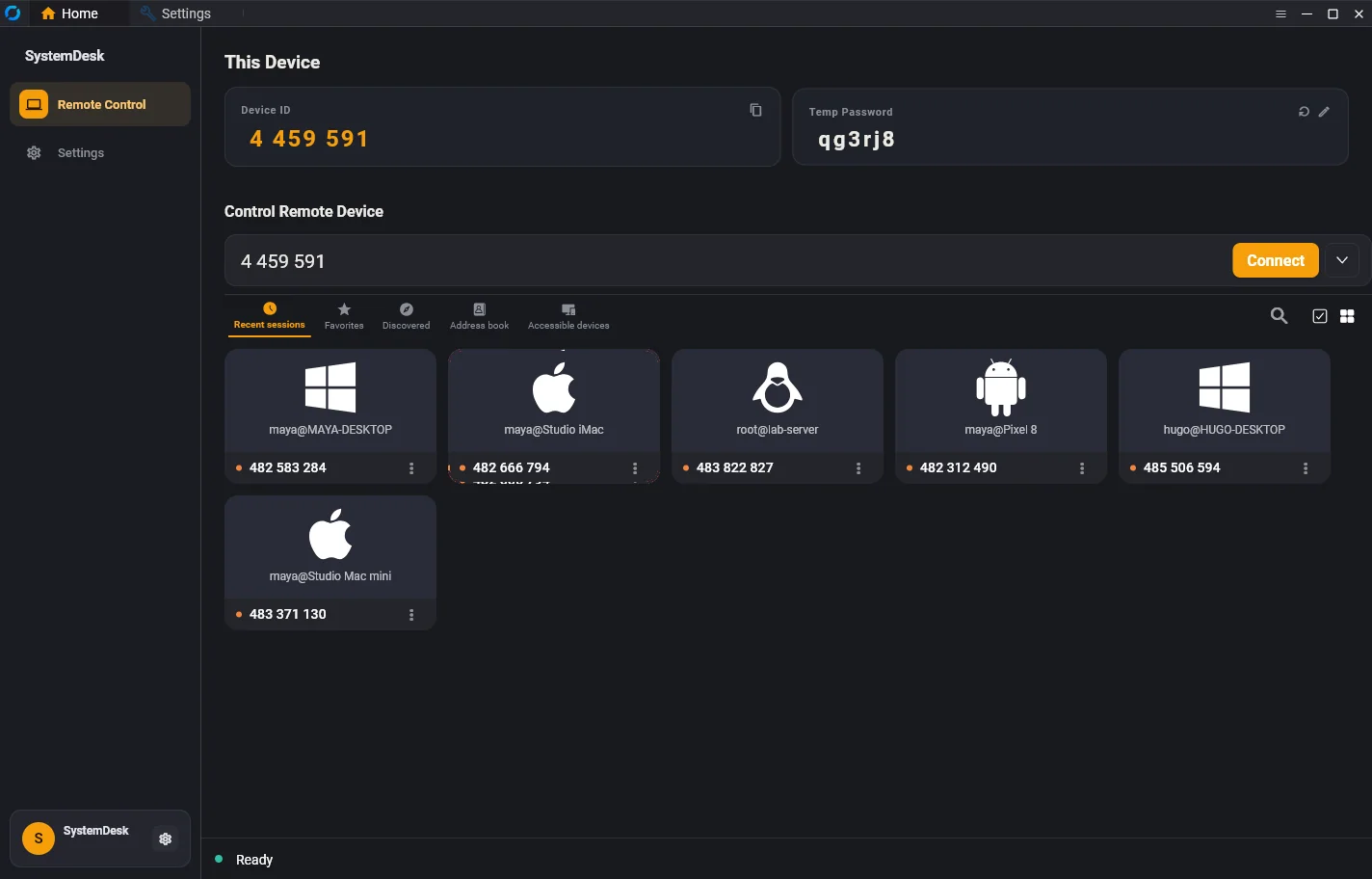
- 3Open SystemDesk. Your ID and password are on the first screen.
The Microsoft Store version is free, and the Store installs it and keeps it up to date. It works while SystemDesk is open. For a computer you want to reach after a restart, or with the window closed, install it with the MSI package: it adds the background service. IT teams roll the MSI out with their own tools.
macOS
macOS 11 or later, Apple silicon or Intel
Setting up
- 1Open the disk image and drag SystemDesk to Applications.
- 2Open it. macOS asks for Screen Recording and Accessibility permission; allow both in System Settings, Privacy and Security.
- 3Restart SystemDesk once after allowing them.
Those two permissions are what let a session show your screen and move your mouse. Without them macOS blocks it.
Android
Android 8 or later
Setting up
- 1Download the APK for your phone (most phones need the 64-bit one).
- 2Open it and, if Android asks, allow installs from this source.
- 3Open SystemDesk and sign in or use it without an account.
It is a direct APK for now, so you will not find it in the Play Store yet.
Linux
Packages for Debian, Ubuntu and Fedora are being prepared. The code already runs on Linux, so if you are comfortable building from source you can do that today.
Build from sourceiPhone and iPad
A viewer for iOS is on the way. Create an account now and we will let you know in the portal when it is ready.
Create an accountBefore your first connection
Keep your password to yourself. Anyone with your ID and password can control the computer. Share them only with someone you trust, ideally on a call.
Check what you allow. Settings, Security lists the 13 things a session may do. Switch off what you do not need on a given machine.
Sign in to see it all. With an account your plan, usage and devices follow you, and the portal shows every session on your machines.
Open the other computer.
It takes one install and one ID. The free plan has no time limit and asks for no card.